Publish a Solution
Publishing is the last step in the build process where you push your solution into the Production environment. Once published, your solution is active—each module that has been turned on and marked for publish is running, monitoring the input data source and moving items through your workflow.
Publishing a solution is part of the larger building process you go through as a maker:
Build and iterate on module workflow, creating module versions at regular intervals.
If your solution is localized in other languages or for other regions, you must also follow the procedure for creating a solution translation version and coordinating with your admin to have content translated.
When your modules are marked for publish and your solution is ready, follow the steps below to publish your solution:
Navigate to the solution you want to publish.
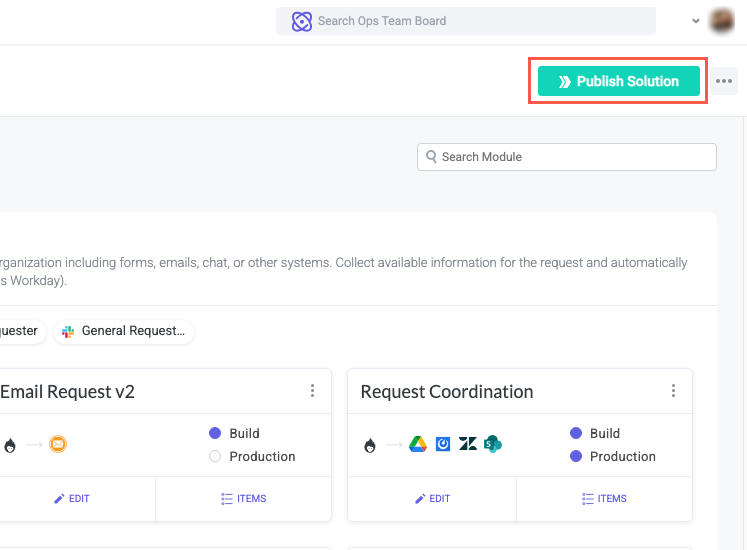
Select Publish Solution in the top right. The Publish solution to Production environment window displays.
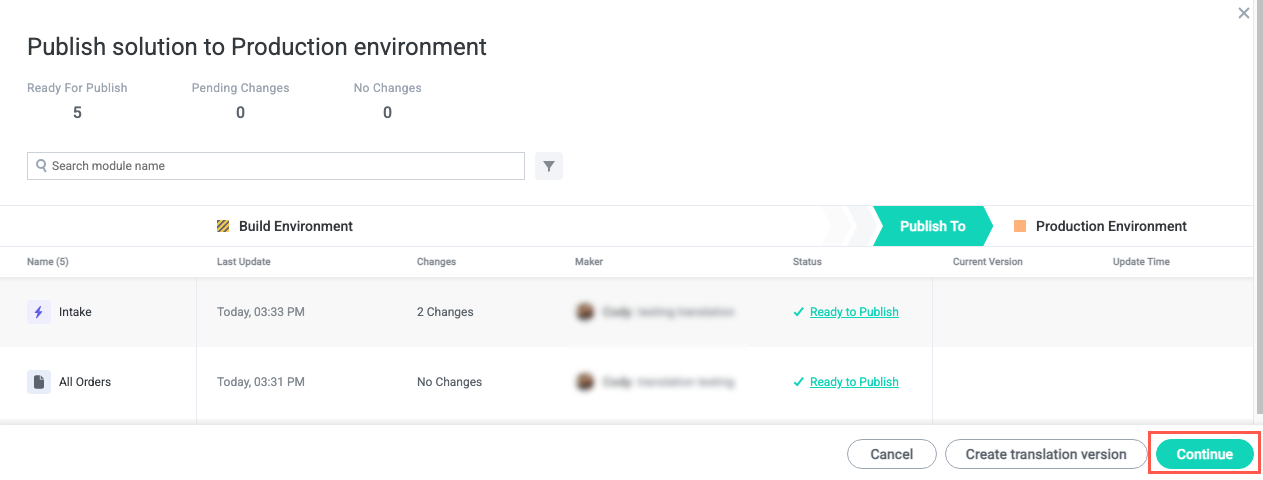
Review the relevant changes in each module and, when ready, select Continue. The Publish window displays.
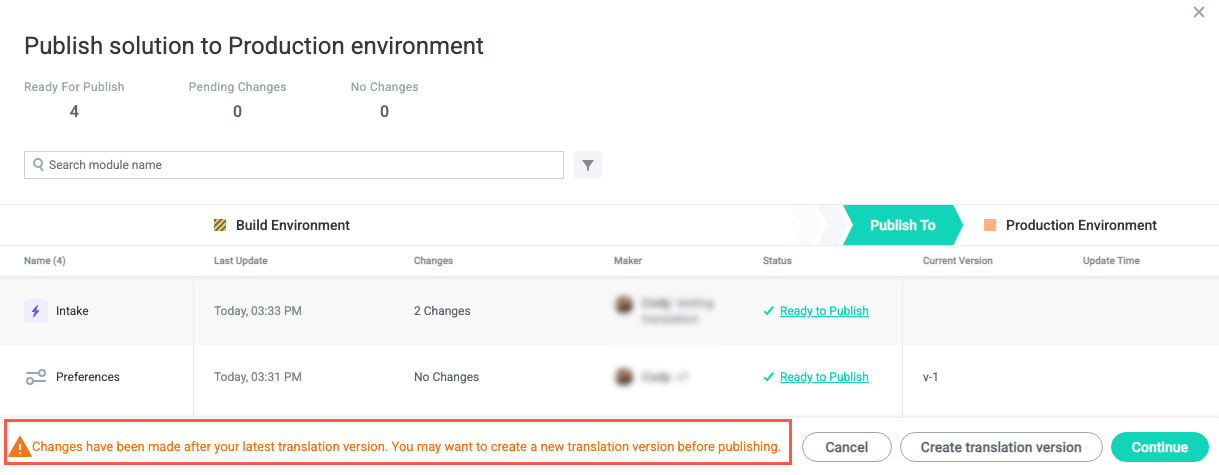
Note that when relevant text has been updated since the last translation version was created, a message indicating this displays when attempting to publish a solution. When you create a translation version with all updated text, this message does not display.
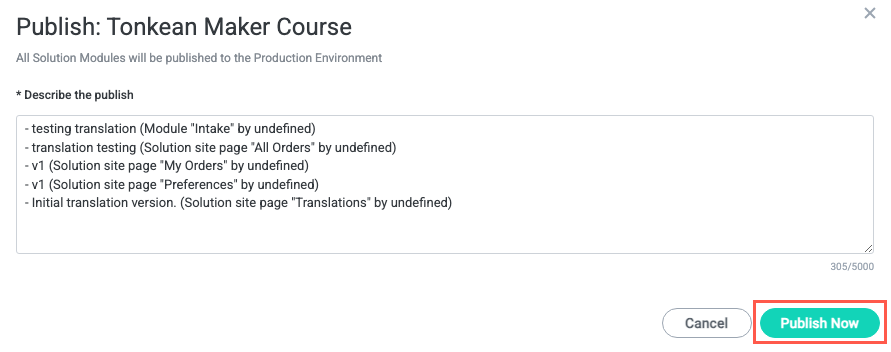
By default, the description for the publish is comprised of the descriptions of the individual module publishes. Edit this description to reflect any solution-level changes, if desired. When finished, select Publish Now. A success message appears in the top right corner of the screen.
The solution is published successfully to the Production environment.